
How to connect your Smart TV to a Mobile Hotspot"
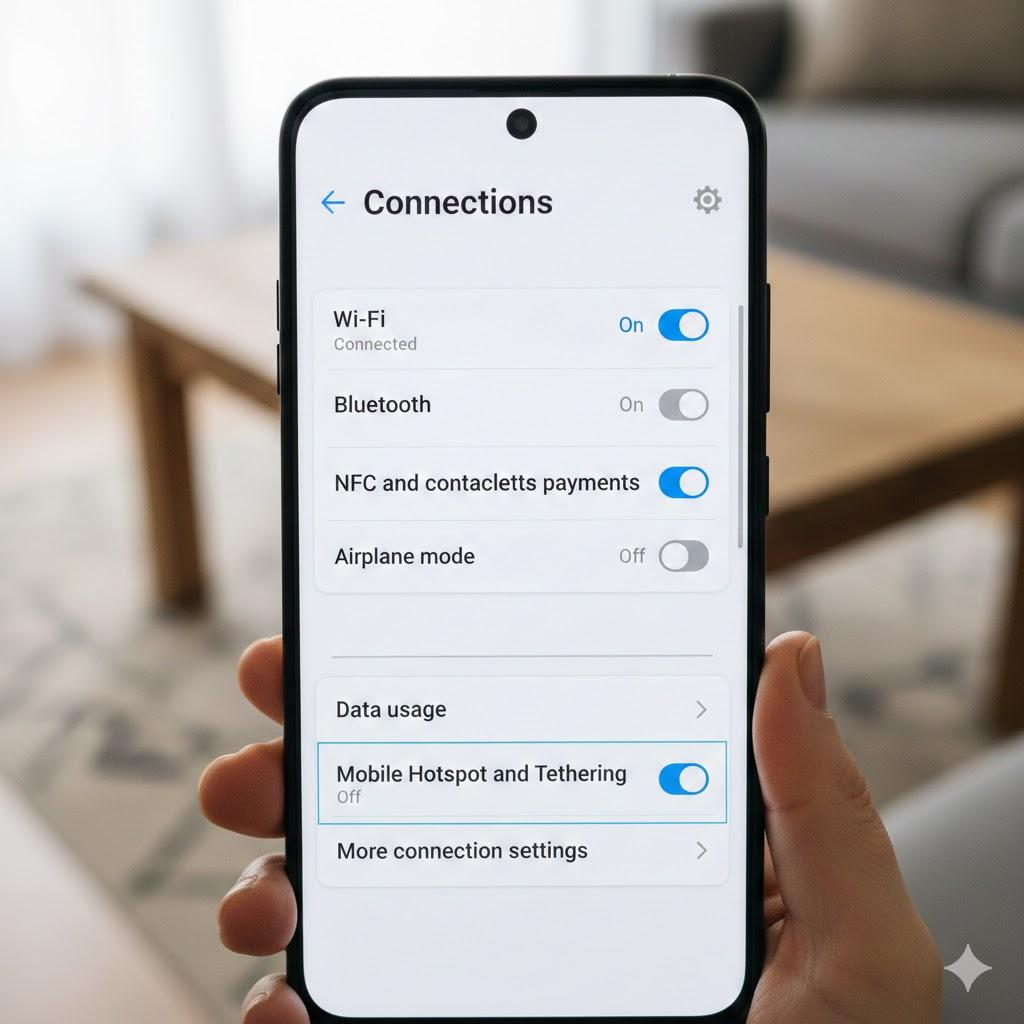
How to connect your Smart TV to a Mobile Hotspot" by #technews.co.ke provides a straightforward, step-by-step guide on using your phone's cellular data to provide internet to a TV.
Here is a summary of the key steps and tips covered:
1. Preparing Your Phone
Enable Mobile Data: Ensure your phone has an active internet connection before starting
Crucial Setting (2.4 GHz Band): Many smart TVs struggle with 5GHz hotspots.
Android: Go to Hotspot settings and ensure the band is set to 2.4 GHz
iPhone: Enable the "Maximize Compatibility" toggle in the Personal Hotspot settings to switch to 2.4 GHz
Note Credentials: Take note of your hotspot's Network Name and Password
2. Connecting the TV
Navigate to Settings: Open your TV's main settings menu (usually represented by a cog icon)
Network Settings: Look for "Network" or "Connection" and select "Open Network Settings" or "Wireless"
Select Network: Find your phone’s hotspot name in the list of available Wi-Fi networks [
Enter Password: Type in the password exactly as it appears on your phone to establish the connection
3. Troubleshooting & Important Tips
Signal Strength: If the connection fails, check your phone’s cellular reception. Poor signal (1 bar) can prevent a stable connection
Data Usage: Streaming video (Netflix, YouTube, etc.) consumes a large amount of data very quickly. Ensure you have a sufficient data plan to avoid extra charges
For more details, you can watch the full video here: