
How to Connect Your Smartphone to a Samsung TV (2026)
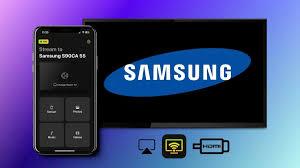
Connecting your smartphone to a Samsung TV lets you share videos, photos, presentations, and apps on the big screen. Whether you prefer wireless convenience or wired stability, Samsung TV models in 2026 support multiple easy methods.
Connecting your smartphone to a Samsung TV lets you share videos, photos, presentations, and apps on the big screen. Whether you prefer wireless convenience or wired stability, Samsung TV models in 2026 support multiple easy methods.
1. Wireless Connection Methods
📶 Before You Start:
Make sure your smartphone and the Samsung TV are on the same Wi-Fi network.
Smart View (Samsung Galaxy Phones)
This is the simplest wireless option for Galaxy users.
-
Swipe down from the top of your phone to open Quick Settings.
-
Tap Smart View (swipe left if needed).
-
Choose your Samsung TV from the device list.
-
Tap Start Now and confirm on the TV if prompted.
SmartThings App (Android & iPhone)Works on both Android and iOS devices.
-
Open SmartThings and select your Samsung TV.
-
Tap More Options (three dots) → Mirror Screen (Smart View).
-
Tap Start Now to begin mirroring.
Tap View (Samsung TVs 2020+)
Touch-to-connect mirroring.
-
In SmartThings, go to Menu → Settings and enable Tap View and Tap Sound.
-
Gently tap the back of your phone against the top or side of the TV.
-
Accept the connection notification on your phone.
AirPlay (iPhone/iOS)
Available on most Samsung TVs made from 2018 onward.
-
Open Control Center on your iPhone.
-
Tap Screen Mirroring.
-
Choose your Samsung TV.
-
Enter the AirPlay code shown on the TV.
2. Wired Connection
Best for Stable Display (No Wi-Fi Needed)
-
Use a USB-C to HDMI adapter for your phone.
-
Connect an HDMI cable between the adapter and the TV.
-
Switch the TV’s Source/Input to the correct HDMI port.
3. Quick Troubleshooting
📺 Small TV Image?
-
Tap the Smart View icon → Settings → Phone aspect ratio → Select Full screen on connected device.
📶 Connection Rejected?
-
On the TV go to Settings → General → External Device Manager → Device Connect Manager → Device List and ensure your phone is Allowed.